USD
 KES - Kenya
 NGN - Nigeria
 ZAR - South Africa
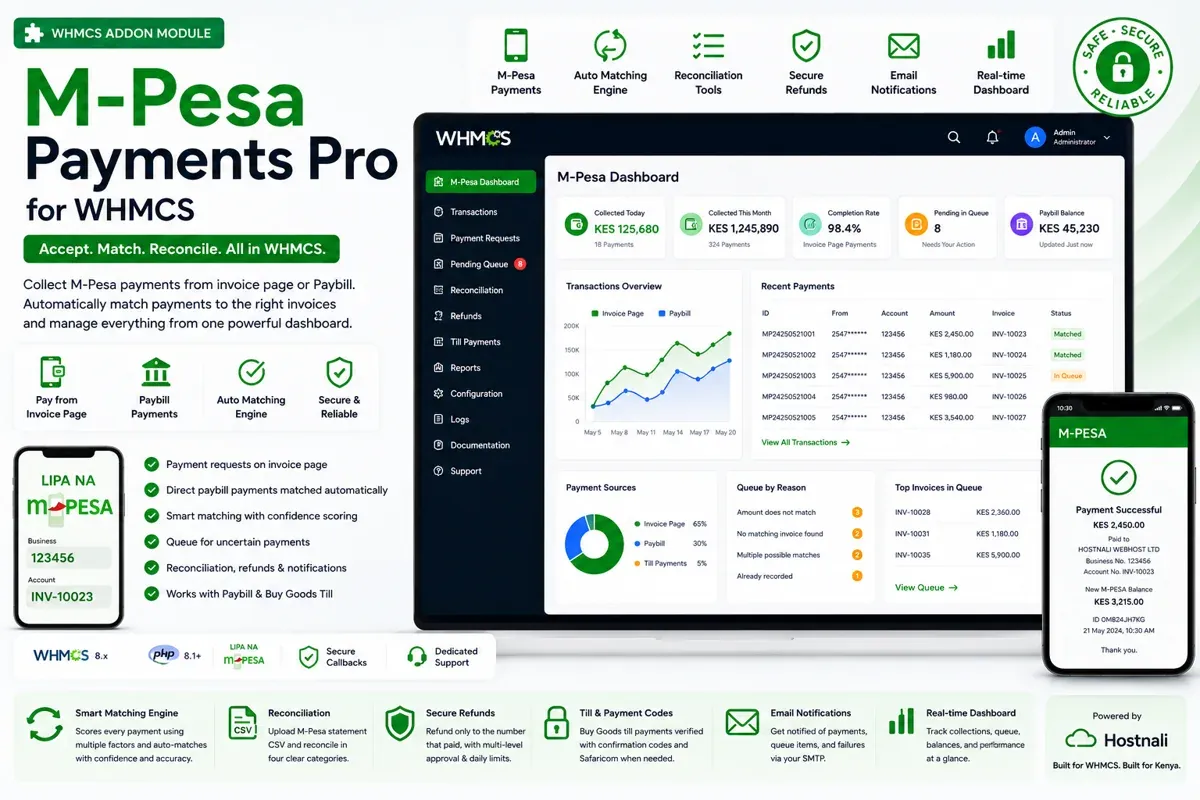
If you run a hosting company, a domain business or a SaaS product in Kenya on WHMCS, most of your clients would rather pay with M-Pesa than with a card. WHMCS doesn’t support M-Pesa out of the box, so you need a payment gateway module that talks to Safaricom’s Daraja API and records each payment against the right invoice.
This guide explains how M-Pesa payments in WHMCS work, what you need from Safaricom, how to set it up and the problems to watch out for.
The two ways clients pay with M-Pesa
1. A payment request on the invoice (STK push)
The client opens an invoice, chooses M-Pesa, types their Safaricom number and gets a prompt on their phone. They enter their M-Pesa PIN, and the invoice is marked paid within seconds. This is the smoothest experience, and it’s how most clients will pay.
2. Paying the paybill directly
Many clients pay from the M-Pesa menu instead: Lipa na M-Pesa → Pay Bill, your business number, and the invoice number as the account number. No browser is involved, so your WHMCS has to receive the payment notification from Safaricom and work out which invoice it belongs to.
A good module supports both, so clients can pay whichever way they prefer and your invoices still update automatically.
What you need before you start
| Requirement | Details |
|---|---|
| WHMCS | Version 8.x on PHP 8.1 or newer (with curl, json and mbstring) |
| Safaricom | A production Daraja app on your own paybill or till, with Lipa na M-Pesa Online enabled |
| Your server | Reachable from the internet over HTTPS, so Safaricom can send payment callbacks |
| Currency | Kenya shillings, or another currency with an exchange rate set in WHMCS |
| Optional | An API operator name and security credential, for refunds, balance checks and code verification |
Paybill or till? A paybill gives the best results, because the account number is what lets payments be matched to invoices automatically. A Buy Goods till works too, but more payments will need a quick manual check, since a till payment carries no account number.
Setting up M-Pesa in WHMCS, step by step
- Get your Daraja credentials. Create a production app on the Safaricom Daraja portal and note the consumer key, consumer secret, shortcode and passkey.
- Install the module. With M-Pesa Payments Pro, you upload two folders into WHMCS and activate the addon; its tables are created automatically.
- Enter and test your credentials. Use the module’s test button to prove they work before any real payment depends on them.
- Register your callback address. This is the address Safaricom sends payment confirmations to. Some words in a callback address are rejected by Safaricom, so the module checks it for you.
- Turn on the gateway. M-Pesa appears on the invoice page, styled to match your WHMCS theme.
- Run a small live payment and confirm the invoice is marked paid and the transaction appears in the log.
The hard part: matching payments to invoices
Taking the money is the easy half. The hard half is a paybill payment that arrives with the wrong account number, the right number but the wrong amount, or nothing useful at all. A basic module either guesses or gives up, leaving your team to reconcile by hand.
M-Pesa Payments Pro scores every plausible invoice, for example:
- the account number matches an invoice (strong signal),
- it matches after fixing a common typo, such as the letter O for zero,
- the paying phone number belongs to a client or has paid before,
- exactly one open invoice has that balance, or the amount equals the balance exactly.
A payment is only recorded automatically when it clears your confidence threshold and clearly beats the next-best invoice. Everything else goes to a review queue with the reasons shown, so your team can confirm it in one click.
Part payments, overpayments and rounding
- Part payments can be recorded with the balance left owing, or held for review.
- Overpayments can settle the invoice and move the extra to the client’s credit balance.
- Rounding: M-Pesa only accepts whole shillings, so an invoice ending in cents always collects slightly more. A small tolerance absorbs it instead of filling credit balances with cents.
Reconciliation and refunds
At month end, upload the statement CSV from the M-Pesa portal and the module shows four lists: matched payments, payments in the statement but not in WHMCS, payments in WHMCS but not in the statement, and payments you know succeeded but were never named. Any of them can be brought in with one click.
Refunds go only to the number that paid, large refunds need approval from a second admin, and a daily limit applies, so a mistake or a compromised login can’t drain your account.
Common problems and how to avoid them
- Callbacks never arrive: your WHMCS must be reachable over HTTPS from the internet, without a firewall blocking Safaricom.
- Duplicate payments: a resent callback or a retried cron must never pay an invoice twice. Use a module that treats the M-Pesa receipt number as unique.
- Provisioning timeouts: answer Safaricom’s callback immediately and do the work afterwards, so creating a hosting account doesn’t cause a lost payment.
- Wrong account numbers: print clear paybill instructions on every invoice and in invoice emails: business number and invoice number as the account.
Frequently asked questions
Does WHMCS support M-Pesa by default?
No. You need a payment gateway module that connects WHMCS to Safaricom’s Daraja API.
Can clients pay without opening the invoice?
Yes. With paybill support, clients can pay from the M-Pesa menu using the invoice number as the account number, and the invoice is updated automatically.
Do I need a paybill, or will a till work?
Both work. A paybill gives better automatic matching because it includes an account number.
Can I use M-Pesa if my WHMCS bills in US dollars?
Yes, if you set an exchange rate for Kenya shillings in WHMCS so the amount can be converted.
Next step: see M-Pesa Payments Pro for WHMCS and our other WHMCS modules, or contact us with questions.